
Overview

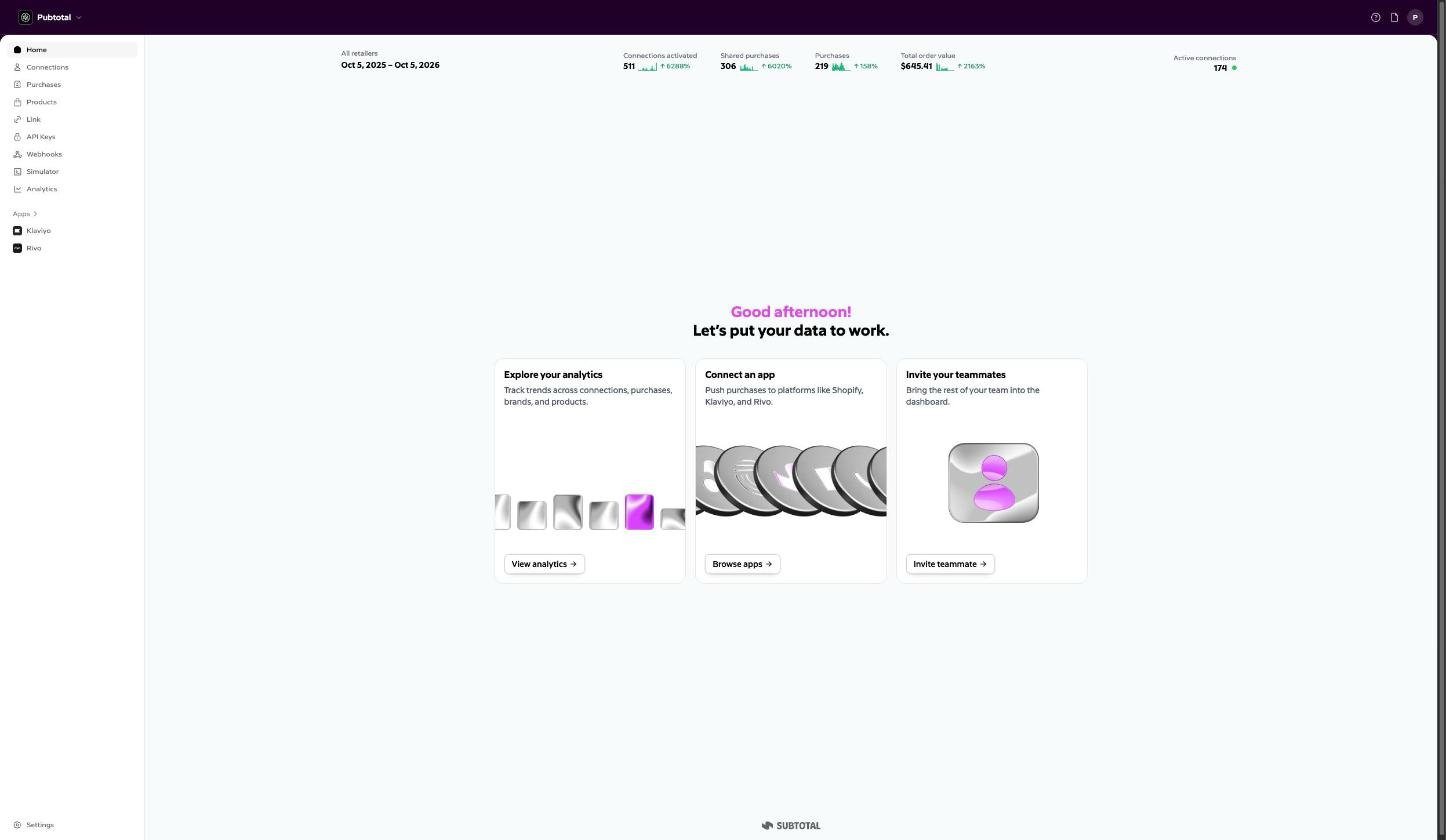
The Subtotal Dashboard is the web-based control center for your Subtotal account. Use the Subtotal Dashboard to configure how your brand uses Subtotal, access data and insights, manage API access, set up webhooks and integrations, and test flows with simulated data. subtotal dashboard
Getting access

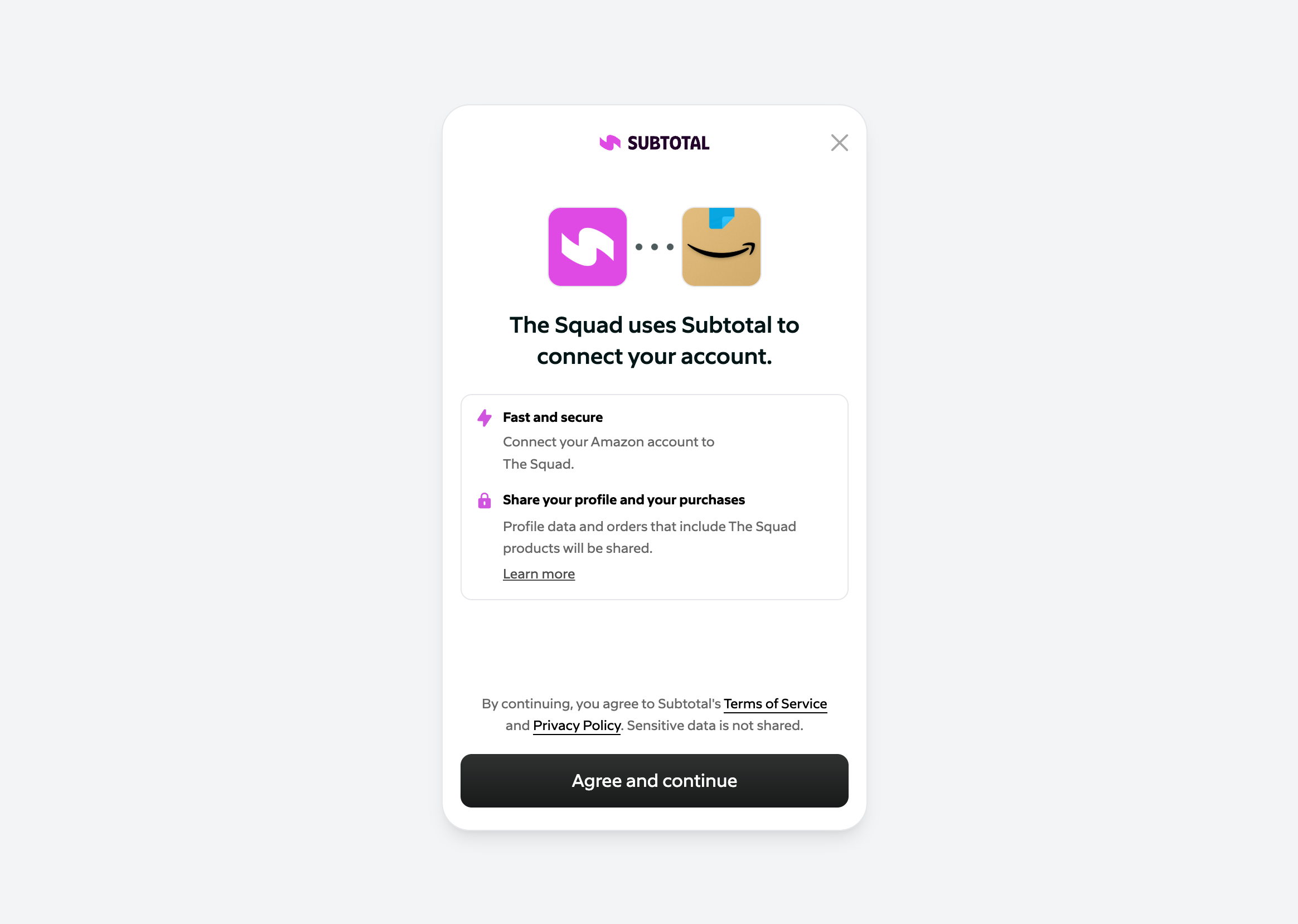
Sign up at https://dashboard.subtotal.com/sign-up. Your dashboard opens locked, on a short form about your brand; submitting it is your access request. Once the Subtotal team approves it, someone on your team starts the subscription and the full dashboard unlocks. See Getting Access for the full flow, and Team & Roles for inviting teammates and managing roles. The first thing you’ll want to do once you have access is configure Subtotal Link to use your brand name, icon, and retailers. Check out our docs on Subtotal Link to get started. Subtotal Link consent screen for connecting an Amazon account and sharing profile data and qualifying purchases with The Squad
API keys

Create and manage API keys in the Subtotal Dashboard. Authenticate your requests to the Subtotal API with a valid API key. See Authentication in the API reference.

Webhooks

In the Dashboard you add webhook destinations—the URLs where Subtotal sends event payloads when connections and purchases occur. Go to Webhooks (or Developers → Webhooks), click Add destination, enter your HTTPS endpoint URL, choose which events to subscribe to, and save. The Dashboard shows a signing secret for each destination; use it to verify webhook signatures in your endpoint. For each destination you can turn simulated events on or off so the Event Simulator can send test events to that URL. See Webhooks for full details and event types.

Event Simulator

The Dashboard includes an Event Simulator that allows you to simulate real-world events such as shoppers linking an account or buying a product. See Event Simulator to learn how to simulate events.

Integrations

Connect Subtotal to third-party platforms under Integrations. See the relevant docs for each integration.

Team & billing

Manage team members and roles under Settings → Team (see Team & Roles), and your plan and payment method under Settings → Billing (see Billing & Plans).