

Subtotal Connect for Shopify
The Subtotal Connect Shopify app adds account-linking to your store so customers can connect their retailer accounts (e.g., Amazon, Walmart, Sephora) and share verified purchases with you. Install the app from the Shopify App Store, then add one or both of the components below to your store.Components
The app includes two components. Use one or both depending on your theme and whether you use the new Shopify customer accounts experience.Theme app block
A block you add in the Shopify theme editor—typically on the Account page or another customer-facing page. It shows a list of supported retailers so customers can link, disconnect, or reauthenticate accounts. The theme app block is fully customizable: you can change copy and colors in the theme editor, and use custom CSS for advanced styling (see Customizing the theme app block below).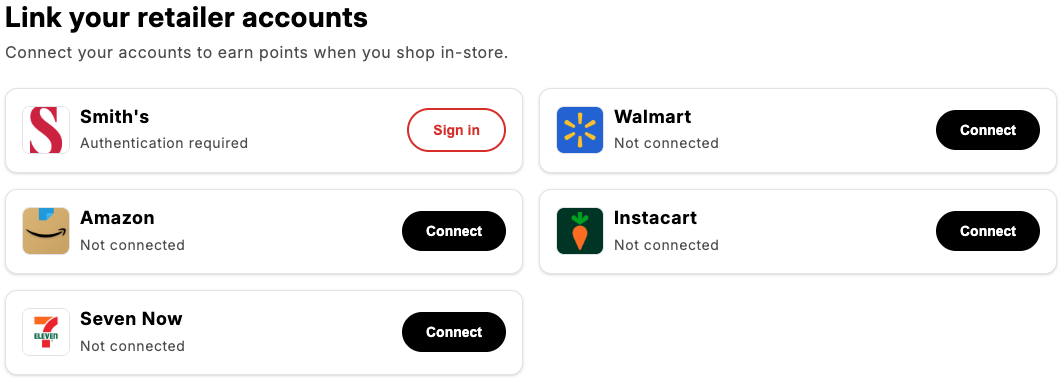
Profile UI extension
An extension that works with the newer Shopify customer accounts. When enabled, customers can manage their linked retailer accounts from their profile without needing the theme app block on a specific page. The profile extension uses Shopify’s default styling for the customer account area.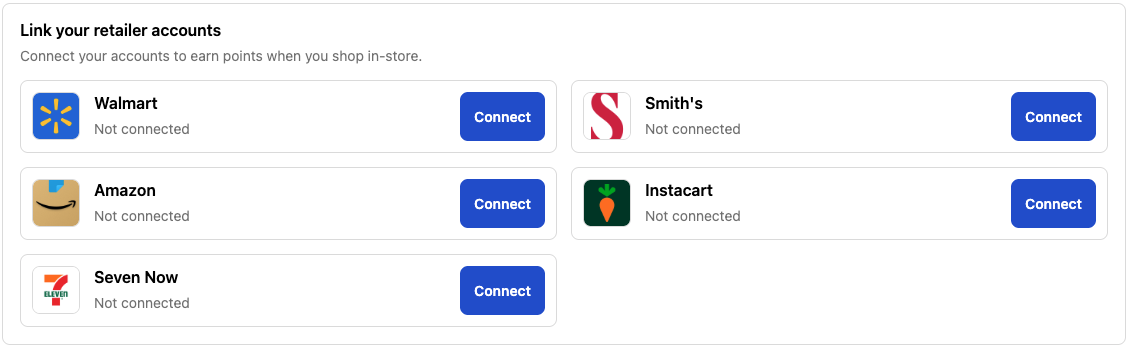
Connection tags
Connection tags let you label the connections your store creates, so you can group them when you report on connections. A tag you set is returned on the connection by Get a connection. Tags are yours to define — Subtotal never interprets them. The app supports three tag names:utm_campaign, utm_source, and utm_medium. All three are optional. Leave them blank and connections are created without tags.
Where you set them
Each surface is configured separately, so you can tell connections from your storefront apart from connections from a customer’s profile:
What to expect
- Tags are recorded when a connection is created. Editing a setting later doesn’t change connections that already exist.
- A value longer than 256 characters is dropped rather than truncated.
- Only the three names above are accepted. Anything else is ignored.
- Storefront page URLs are never read for tags. A customer who arrives on your site with UTM parameters and later links an account is not tagged from those parameters — only the values you set, or the ones on a Subtotal link URL, are used.
Don’t put personal information in tags. Tag values are visible wherever you group connections, and they aren’t intended for customer data.
Customizing the theme app block
The following sections apply only to the theme app block. They do not apply to the profile UI extension.Quick Start
- In your Shopify admin, go to Online Store > Themes
- Click Customize on your active theme
- Navigate to the page where Subtotal Connect is placed (typically the Account page)
- Click on the Subtotal Connect block in the sidebar
- Adjust settings to match your brand
- Click Save to apply changes
Theme editor settings
The following settings are available for the theme app block in the Shopify theme editor: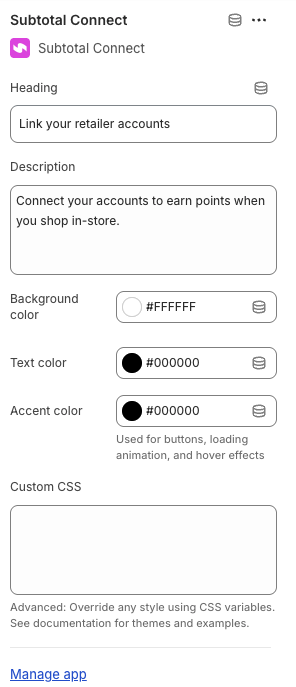
CSS Variables Reference
For advanced customization, use the Custom CSS field in the theme app block settings to override any style. All styles are controlled through CSS custom properties that you can override.Color Variables
Button Variables
Typography Variables
Spacing Variables
Border Radius Variables
Effect Variables
Premade CSS Themes
Copy and paste these themes into the Custom CSS field (theme app block settings) for instant styling. Each theme is designed to work as a complete style override.Clean Minimal
A clean, borderless design with subtle shadows and refined spacing.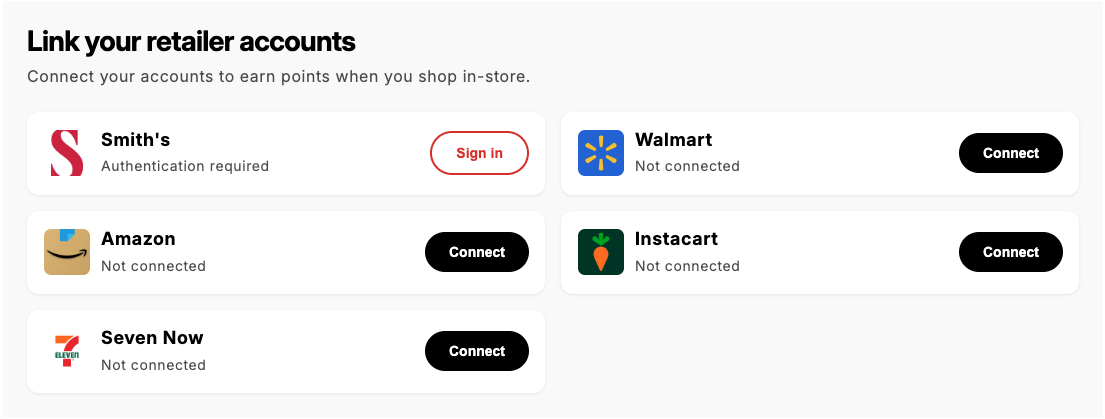
Modern Gradient
A contemporary theme with a gradient header accent and modern styling.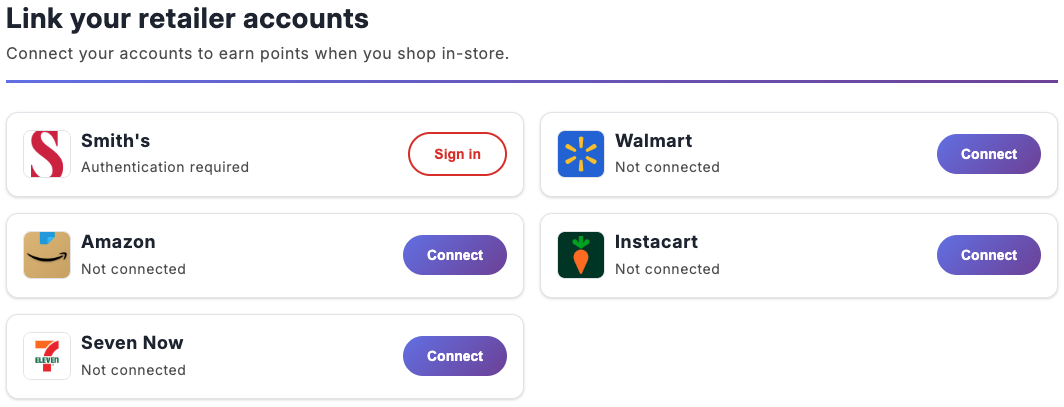
Dark Mode
A striking dark theme perfect for stores with dark aesthetics.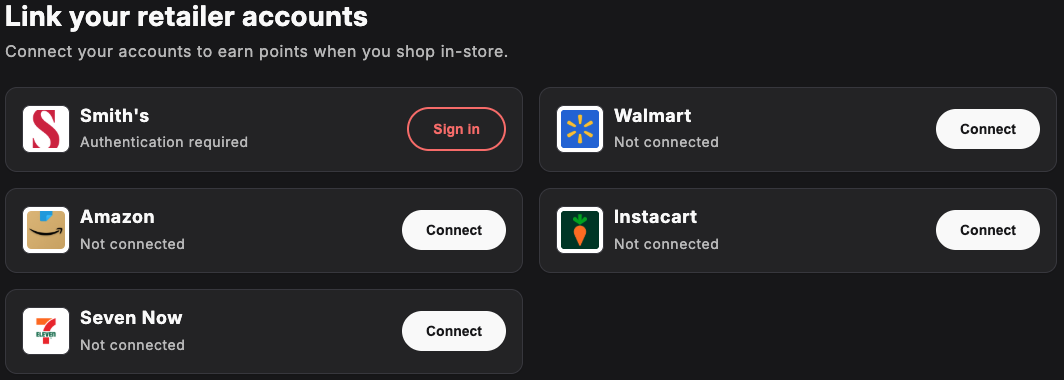
Soft & Rounded (Warm)
A friendly, approachable design with soft colors and generous rounding.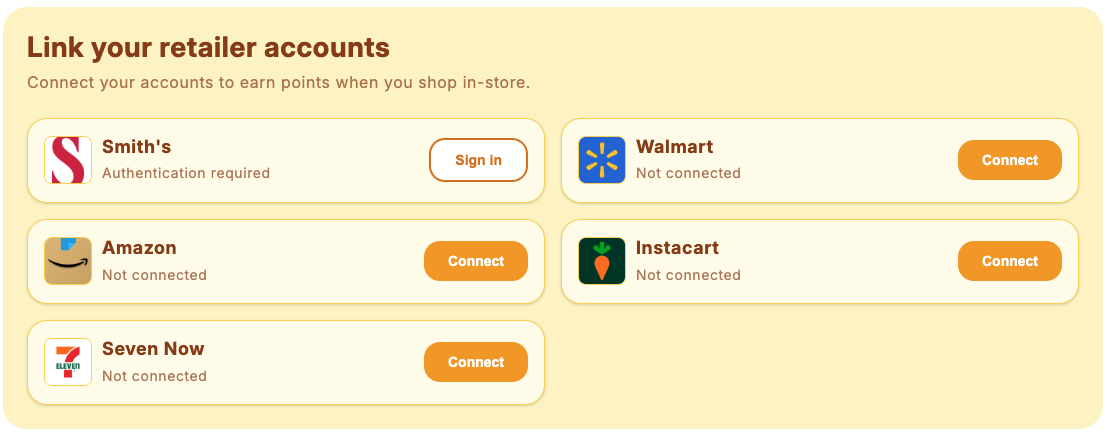
Professional Blue
A corporate, trustworthy design with blue accents.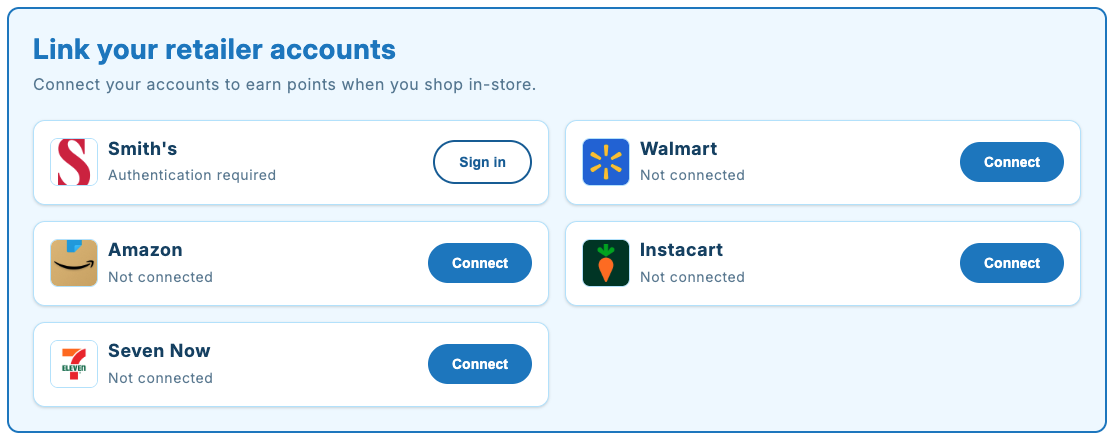
Elegant Card
A sophisticated design with a prominent left border accent.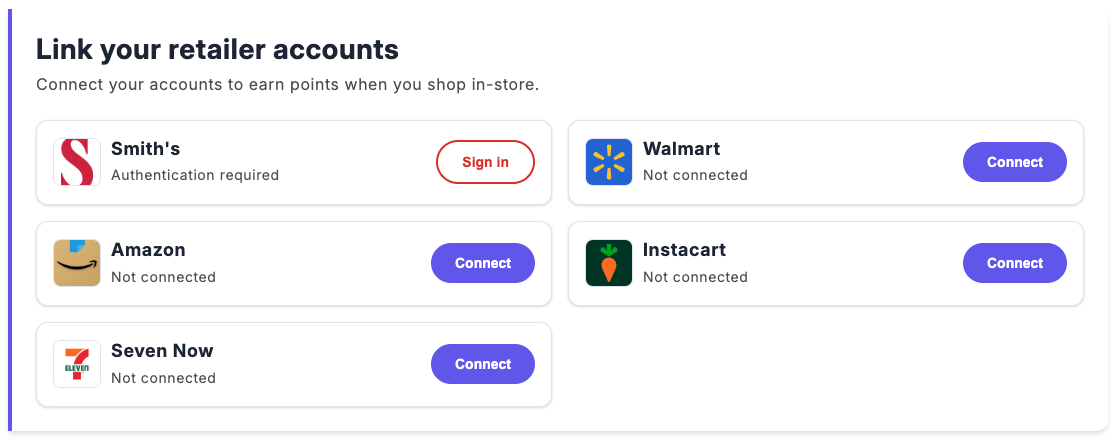
Playful Pop
A fun, eye-catching design with bold shadows and vibrant colors.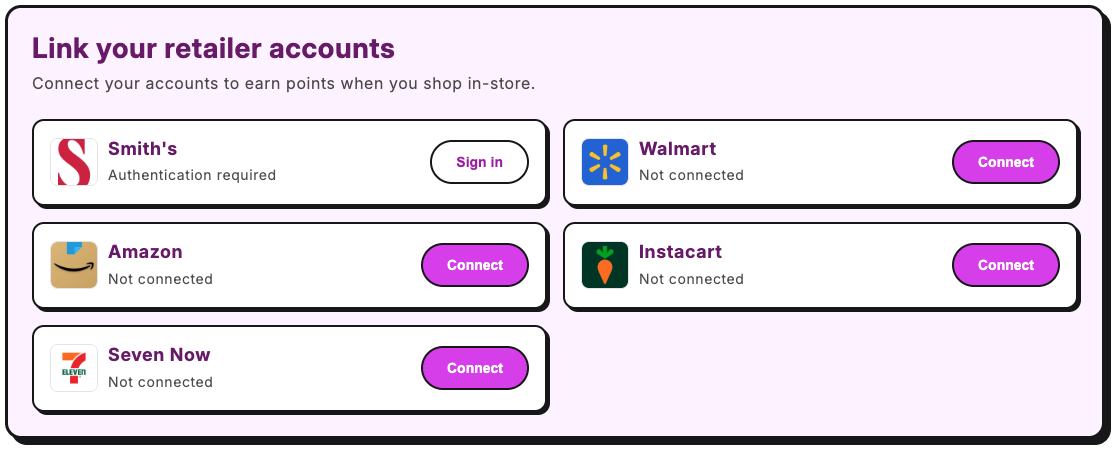
Nature Green
An earthy, eco-friendly design with natural green tones.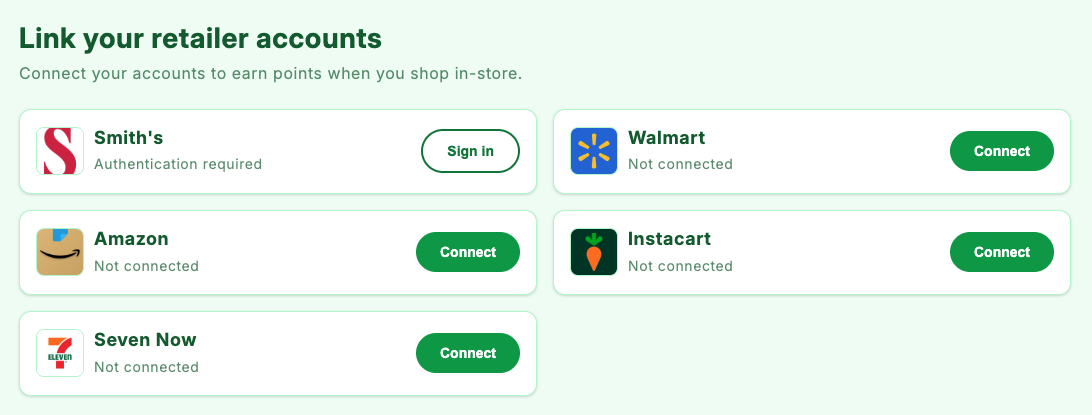
Advanced Customization Examples
Custom Fonts
Import and apply custom fonts from Google Fonts:Custom Entrance Animation
Replace the default fade-in with a custom animation:Staggered Card Animation
Add staggered animations to cards as they appear:Glassmorphism Effect
Create a modern frosted glass appearance:Center-Aligned Header
Change the header alignment to centered:Adjust Typography Sizes
Make the app block more compact or larger:Remove Card Shadows and Borders
For a flatter, more minimal look:Add Container Border
Wrap the app block in a border:Custom Mobile Breakpoint Styles
Fine-tune the app block for mobile devices:Key Elements Reference
Use these class names to target specific elements in your Custom CSS for the theme app block:Troubleshooting (theme app block)
CSS Changes Not Appearing
- Make sure you clicked Save after adding custom CSS
- Clear your browser cache and hard refresh (Cmd/Ctrl + Shift + R)
- Check for CSS syntax errors (missing semicolons, brackets)
- Use
!importantif your styles are being overridden by theme CSS
App Block Not Displaying
- Ensure you’re logged in as a customer when viewing the account page
- Check that the Subtotal app is properly configured
- Verify the block is added to the correct page template
Styles Conflicting with Theme
If your Shopify theme’s CSS conflicts with the app block:Custom CSS Field Too Small
The Custom CSS textarea in Shopify’s theme editor is small. For complex themes:- Write your CSS in a separate code editor
- Copy and paste into the Custom CSS field
- Keep a backup of your custom CSS locally
Need Help?
If you need assistance with custom designs or have questions about the theme app block:- Contact our support team at [email protected]
- Include screenshots of your current setup and desired outcome
- Provide your store URL for faster troubleshooting